Connect wallet
To get started with Circuit, click the Connect button in the top right corner of the app.
In the pop-up that opens, select either Sage or Goby. Sage is recommended as it is better supported.
Sage runs as a standalone app on all major desktop and mobile platforms. Goby is a browser extension available for Chrome and Brave.
Click the Install link if your wallet of choice isn't installed yet.
Sage
First, make sure that Sage is on the correct network.
Settings -> Network -> Default Network: mainnet
Sage knows the BYC asset ID. There is no need to register it manually.
When connecting, either scan the QR code displayed or copy & paste the Wallet Connect URI string to Sage
Settings -> General -> WalletConnect: <URI>
It is recommended to use a fresh wallet to prevent issues with coins in addresses that have a large derivation index. To prevent the wallet from creating new addresses, set the first wallet address as the change address:
Copy the address with derivation index 0 shown under Addresses, and paste it to
Settings -> Wallet -> Change Address: <address>
The app imports the wallet, and you are good to go ahead and use Circuit protocol!
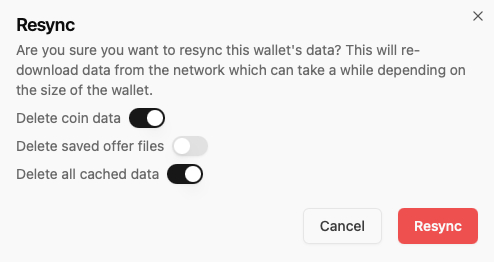
If Sage doesn't show expected balances, it's likely a syncing issue. Resync the wallet under
Settings -> Wallet -> Resync
and activate the Delete coin data and Delete all cached data toggles.
Hardened keys
Sage supports both unhardened and hardened keys. They differ in how they are derived from the master private key of the wallet. The addresses corresponding to unhardened keys are referred to as observer or unhardened addresses. The addresses corresponding to hardened keys are referred to as non-observer or hardened addresses.
By default, Sage uses unhardened keys when connected to Circuit app. To use hardened keys, activate the Hardened keys toggle in the dropdown menu of the Connect button. This will cause an automatic rescan of the wallet. The address and balances in the upper part of the dropdown menu get updated automatically. They now show the first non-observer address and aggregate balance of non-observer addresses of the wallet.
When using hardened keys, it is recommended to set the change address in Sage to the first non-observer address of the wallet. The address can be found by activating the Show hardened keys toggle under Addresses.
Goby
When connecting, Goby will ask you to switch to Chia mainnet if you are connected to another network. It will also automatically register the BYC asset ID for you.
If the automatic process fails, you can manually switch to mainnet by clicking on the settings cog wheel in the top right of the extension and then
Advanced Options -> Networks -> Mainnet
To manually register BYC, click on Import Tokens -> Custom, and add the BYC asset ID.
You are now connected, and can interact with Circuit protocol!
If the Goby backend is unresponsive, you can use Sage instead. Import the mnemonic from Goby in Sage and use hardened keys.
Other wallets
Other wallets are not supported yet. This includes the official Chia reference wallet.
Next steps
Once you have connected your wallet of choice, you can either borrow Bytecash or start earning yield.
Note that you can only perform one operation per block via the app. If there is a pending transaction, a corresponding message gets displayed near the top right of the webpage. Wait for the pending transaction to get confirmed before performing another operation.
